Configuration — Intranet Design 1 — Professional SharePoint Intranet
Note:
The Home page should be configured using the "Intranet Design 1 — Professional SharePoint Intranet Setup" web part to ensure that the required lists and libraries are created automatically. Without this configuration, users will need to manually create dedicated lists or libraries for the respective web parts.
1. Setup Wizard🔗
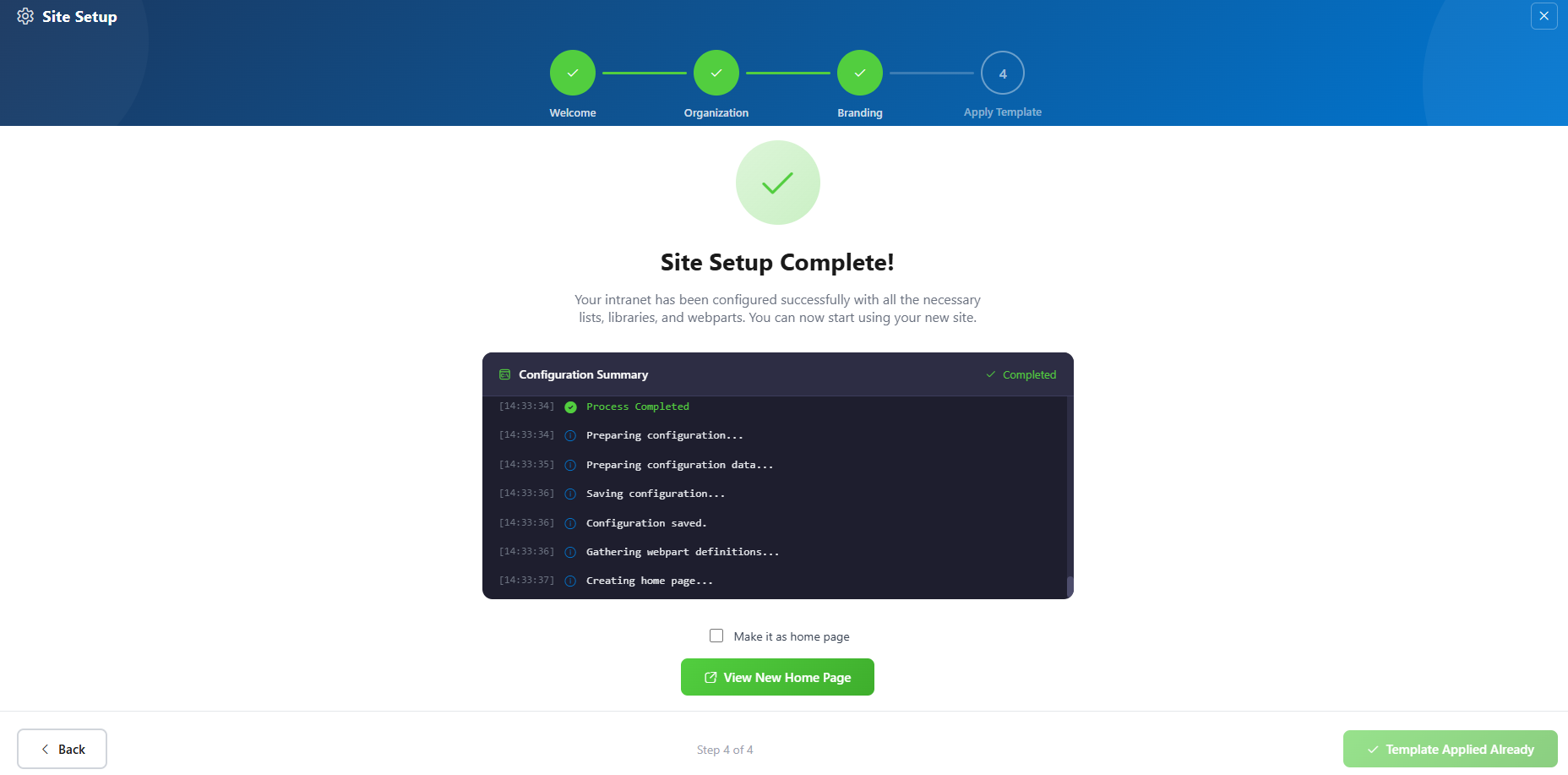
1Since this is a first-time setup (or setup was not previously completed), a full-page Setup Wizard will automatically appear — no need to manually add any web part.
2Walk through the wizard steps: Organizational Details — Enter your organization information. Branding — Upload your site logo. The wizard uses AI to automatically generate a brand color palette from the logo. You can review, adjust, or change the suggested colors before clicking Save and Apply Theme. You can also upload a custom favicon and configure regional settings. Deploy & Template* — Deploy the intranet layout. Once deployed, the page is saved as a template so it can be reused later to recreate the site layout.
3Do not close the browser during deployment. The wizard will create the required lists, libraries, and layout with sample data.
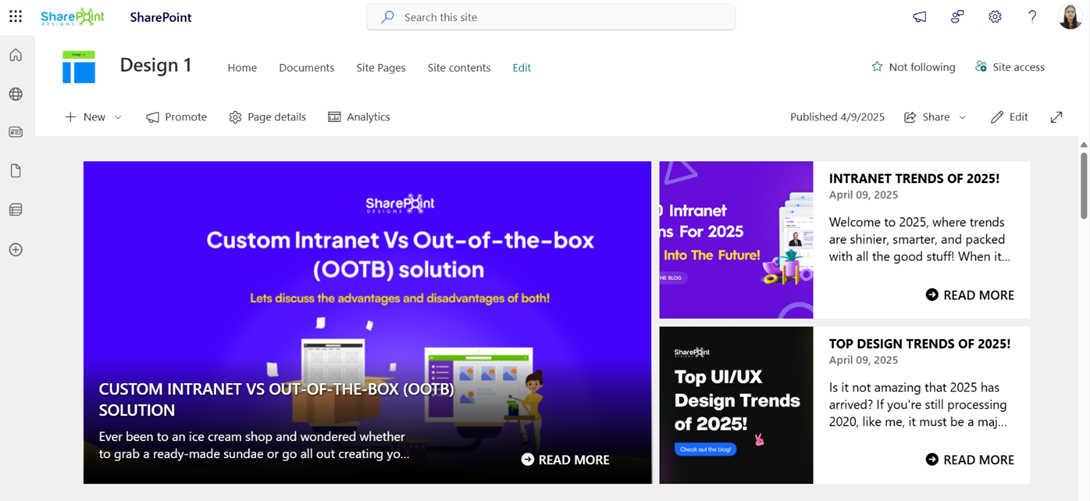
4Once deployment is complete, you will be given the option to set the newly created page as your homepage. Click View Page to open the new page with the full Design 1 layout applied.
📰 2. Featured News🔗
📋 Details
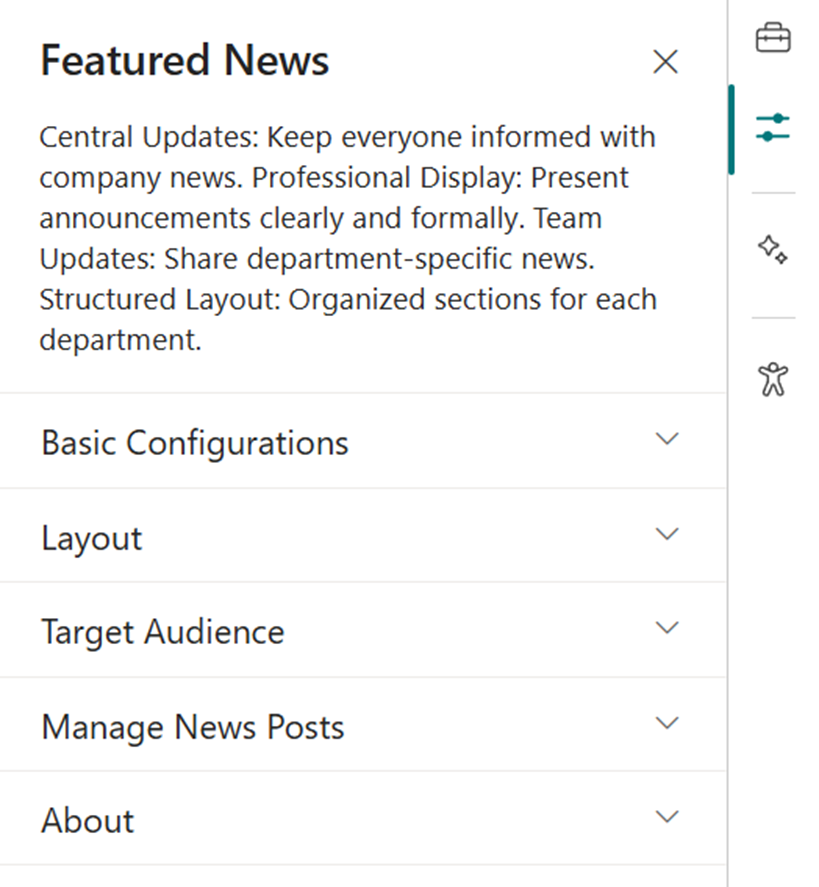
Central Updates: Keep everyone informed with company news.
Professional Display: Present announcements/department news clearly and formally.
Structured Layout: Organized sections for each department.
Features News
🏷️ Features News Web Part – Property Pane Configuration
Features News Property Pane
🎨 Appearance Settings
🏷️ Name
🎯 Purpose
💡 Select Option
Choose Layout
Select layout style for news display
Top Story, Grid, Filmstrip, Tiles
Show Category Filter
Note: This should be enabled only if the news is tagged to any category. Toggle to enable filtering content by category.
Off
News Category
Select the available choice column to apply filters.
choose available choice column
Apply Filters
Select the available options from the News Category selected.
(Not Selected)
Show Search Box
Allow users to search news articles
On / Off
Show Sort By
Add sorting option to reorder news content
On / Off
⚙️ General Settings
🏷️ Name
🎯 Purpose
💡 Select Option
Webpart Title
Title displayed at the top of the news web part
Features News
Search Sites
Select SharePoint sites to pull news from
(Leave blank for current)
Filter by Tag
Filter news items by tags (e.g., Departments, Announcements)
Enter tags
Enable RSS Feed
Toggle RSS feed functionality on/off
On / Off
Show See All Button
Toggle visibility of “See All” button
On / Off
View All URL
Custom URL for the “See All” button
{siteUrl}/_layouts/15/news.aspx
🎯 Target Audience
🏷️ Name
🎯 Purpose
💡 Select Option
Target Audience
Show news posts only to selected users using targeting
Select audience group
🛠️ Manage News Posts
🏷️ Name
🎯 Purpose
💡 Select Option
Manage News Posts
View and manage all published and draft news posts
Open news management page
🚨 3. Breaking News🔗
📋 Details
Deliver urgent and time-sensitive information with high visibility:
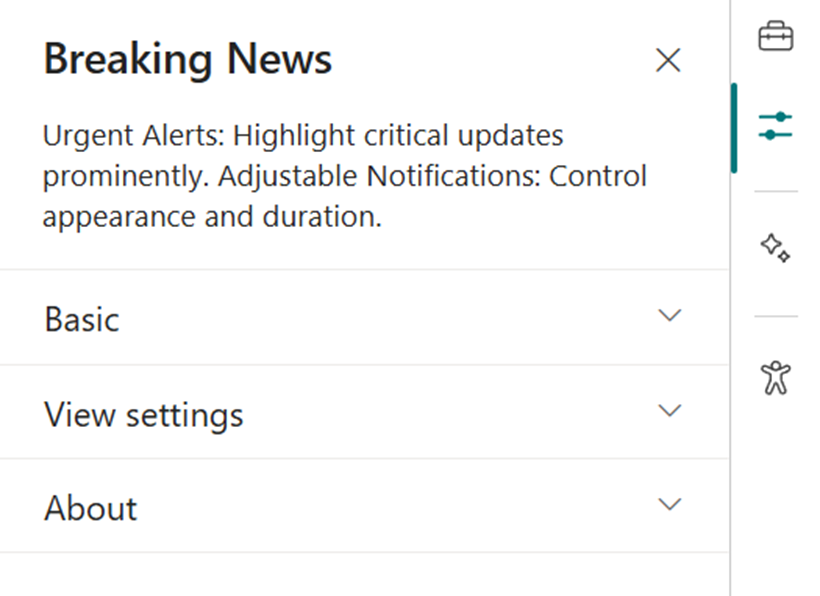
Urgent Alerts: Ideal for critical updates such as service outages, emergency messages, or security notifications.
Adjustable Notification: Customize alert appearance and visibility duration.
Breaking News
List Config
Note: For the Breaking News webpart, create a list with the following columns.
📋 Required Columns
🏷️ Column Name (Case Sensitive)
🔣 Column Type
💡 Option
Link
URL
Expiry Date
Datetime
Order By
Number
Target Window
Choice
(Open in new tab, Open in same tab)
🏷️ Breaking News Web Part – Property Pane Configuration
Breaking News Property Pane
🎨 Appearance Settings
🏷️ Name
🎯 Purpose
💡 Select Option
Webpart Title
Set a custom title for the web part display
Breaking News
Sub Title
Add a custom inline subtitle
(Text input)
Select a List
Choose the SharePoint list with alert content
Breaking News List
Change Icon
Pick an icon representing urgency/type
(Icon picker)
Show Arrows
Enable or disable navigation arrows
On / Off
⚙️ General Settings
🏷️ Name
🎯 Purpose
💡 Select Option
Notification Duration
Set how long the alert remains visible
(Seconds or minutes)
🔗 4. Quick Links🔗
📋 Details
Provide fast and intuitive access to essential resources:
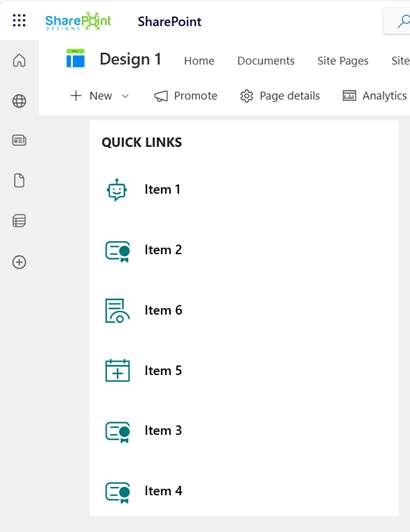
Essential Resources: Direct users to frequently used tools, forms, documents, and company policies.
Icons & Labels: Enhance navigation with clearly labeled links and intuitive icons.
Quick Links
List Config
Note: For the Quick Links/Tool Links webpart, create a list with the following columns.
📋 Required Columns
🏷️ Column Name (Case Sensitive)
🔣 Column Type
💡 Option
URL
URL
Icon
Image
Target Window
Choice
(Yes, No)
Order0
Number
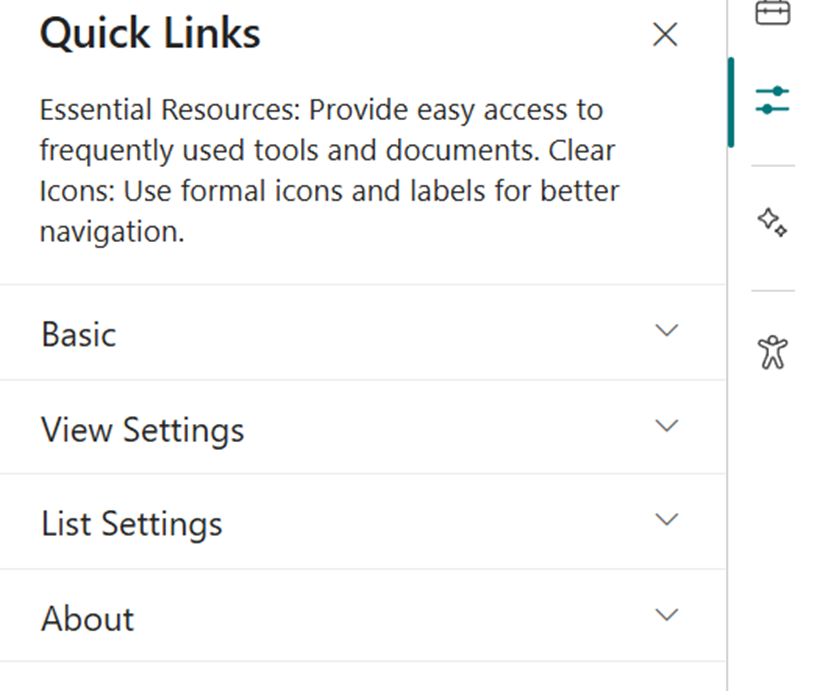
🏷️ Quick Links Web Part – Property Pane Configuration
Quick Links Property Pane
🎨 Appearance Settings
🏷️ Name
🎯 Purpose
💡 Select Option
Webpart Title
Set a custom title to label the web part
Quick Links
Select a List
Choose the SharePoint list for links
Tool Links / Quick Links
Layouts
Choose layout style
Vertical / Horizontal
⚙️ General Settings
🏷️ Name
🎯 Purpose
💡 Select Option
View List
Quickly access the connected list for edits
Open List
👥 5. Employee Search🔗
📋 Details
Easily browse and discover employee information across the organization:
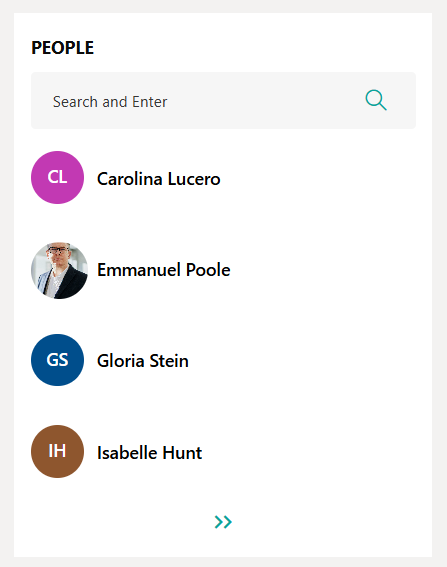
Employee Directory: View detailed staff profiles including name, role, contact info, and more.
Easy Search: Use advanced filters to quickly locate team members by department, job title, or other attributes.
Employee Search
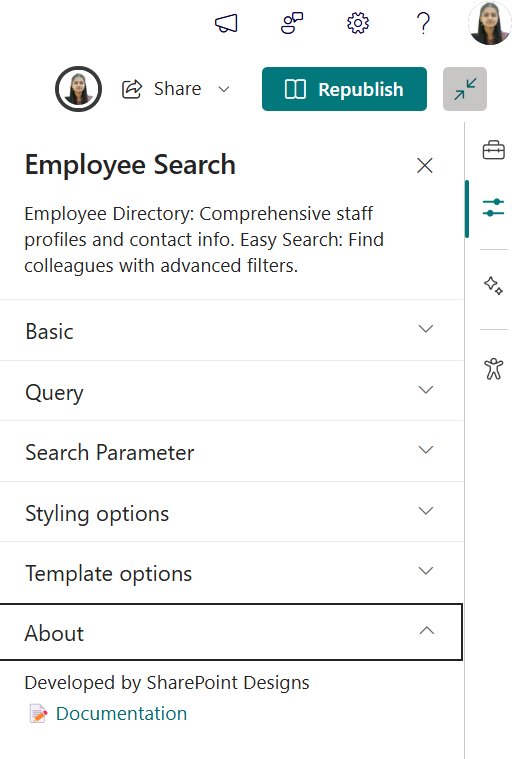
🏷️ Employee Search Web Part – Property Pane Configuration
Employee Search Property Pane
🎨 Appearance & Query Settings
🏷️ Name
🎯 Purpose
💡 Select Option
Webpart Title
Enter a custom title for the web part
Employee Search
$filter
Filter users by Microsoft Graph properties (e.g.,jobTitle eq 'HR Manager')
Text input
$orderby
Sort user results (e.g.,displayName asc)
Dropdown
Number of Items/Page
Set how many user profiles show per page
Number input
$search
Configure search behavior
Text input
Show Pagination
Enable navigation controls to browse additional users
On / Off
Show Blank if None
Display nothing if no results found
On / Off
Show Results Count
Show total matching user count
On / Off
Show Live Persona Card
Display detailed user info on hover
On / Off
Results Layout
Choose the layout style for results (e.g.,People)
Dropdown
🧩 Template Options
🏷️ Name
🎯 Purpose
💡 Select Option
Manage Persona Fields
Customize which user fields appear
Field selector
Picture Size
Set profile picture size
Small / Medium / Large
📰 6. RSS Feed🔗
📋 Details
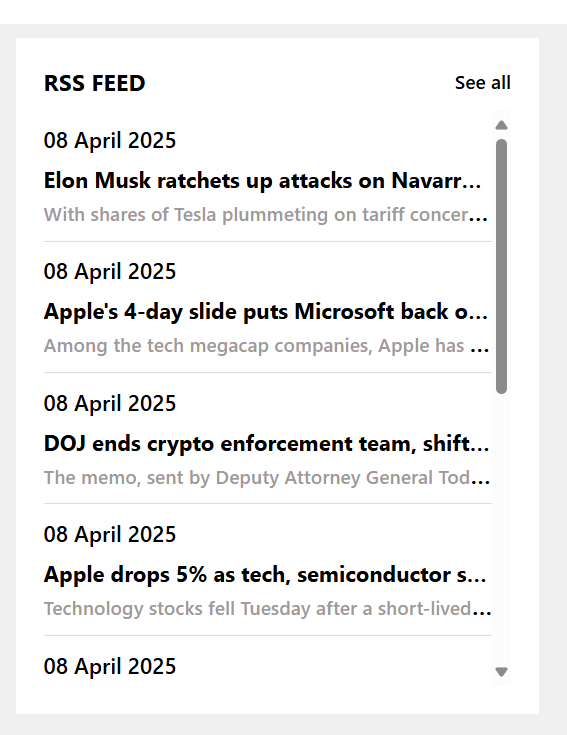
Integrate external news sources directly into your intranet for broader visibility:
External News Integration: Pulls in news from trusted sources like Microsoft, TechCrunch, and more.
Unified Design: Seamlessly styled to match internal news web parts.
Content Preview: Displays headline, summary, and publication date for quick insights.
RSS Feed
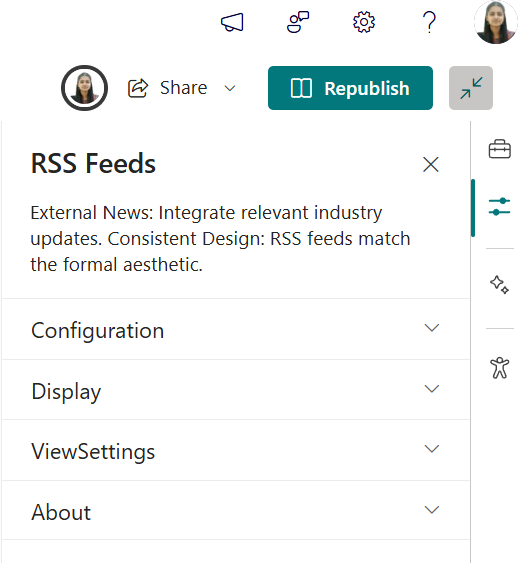
🏷️ RSS Feed Web Part – Property Pane Configuration
RSS Feed Property Pane
🎨 Basic Configurations
🏷️ Name
🎯 Purpose
💡 Select Option
Webpart Title
Enter a custom title for the web part
Text input
RSS URL
Add the URL for the RSS feed
URL input
RSS API Key
Paste API key if required
Text input
🔧 Feed Controls
🏷️ Name
🎯 Purpose
💡 Select Option
Max Count Per Page
Number of feed items to display per page
Slider / Number input
🎛️ Additional Settings
🏷️ Name
🎯 Purpose
💡 Select Option
See All Button
Enable or disable the “See All” button
On / Off
View All URL
Link the “See All” button redirects to
URL input
Webpart Height
Adjust the height of the web part
Slider / Number input
❓ 7. FAQs🔗
📋 Details
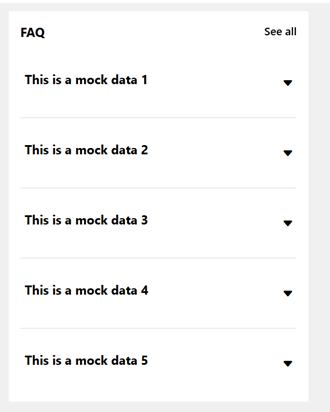
Provide a centralized knowledge base for commonly asked questions:
Knowledge Base: Easily accessible answers to frequent employee or customer inquiries.
Organized Categories: FAQs are grouped into categories for smoother navigation and quicker discovery.
FAQs
List Config
Note: For the FAQs webpart, create a list with the following columns.
📋 Required Columns
🏷️ Column Name (Case Sensitive)
🔣 Column Type
Description
Multiline
Order0
Number
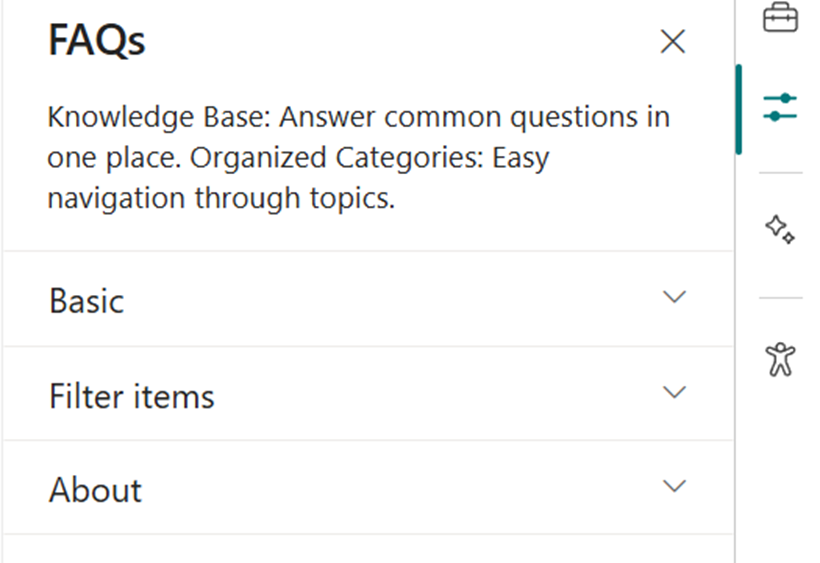
🏷️ FAQs Web Part – Property Pane Configuration
FAQs Property Pane
🎨 Basic Settings
🏷️ Name
🎯 Purpose
💡 Select Option
Webpart Title
Customize the title above the FAQs section
Text input
Select a List
Choose the SharePoint FAQs list with questions & answers
Dropdown
Height
Adjust the height of the web part
Number input
Display All Items
Toggle to show all FAQs or limit the number displayed
On / Off
Items to Show
Number of FAQ items to display when not showing all
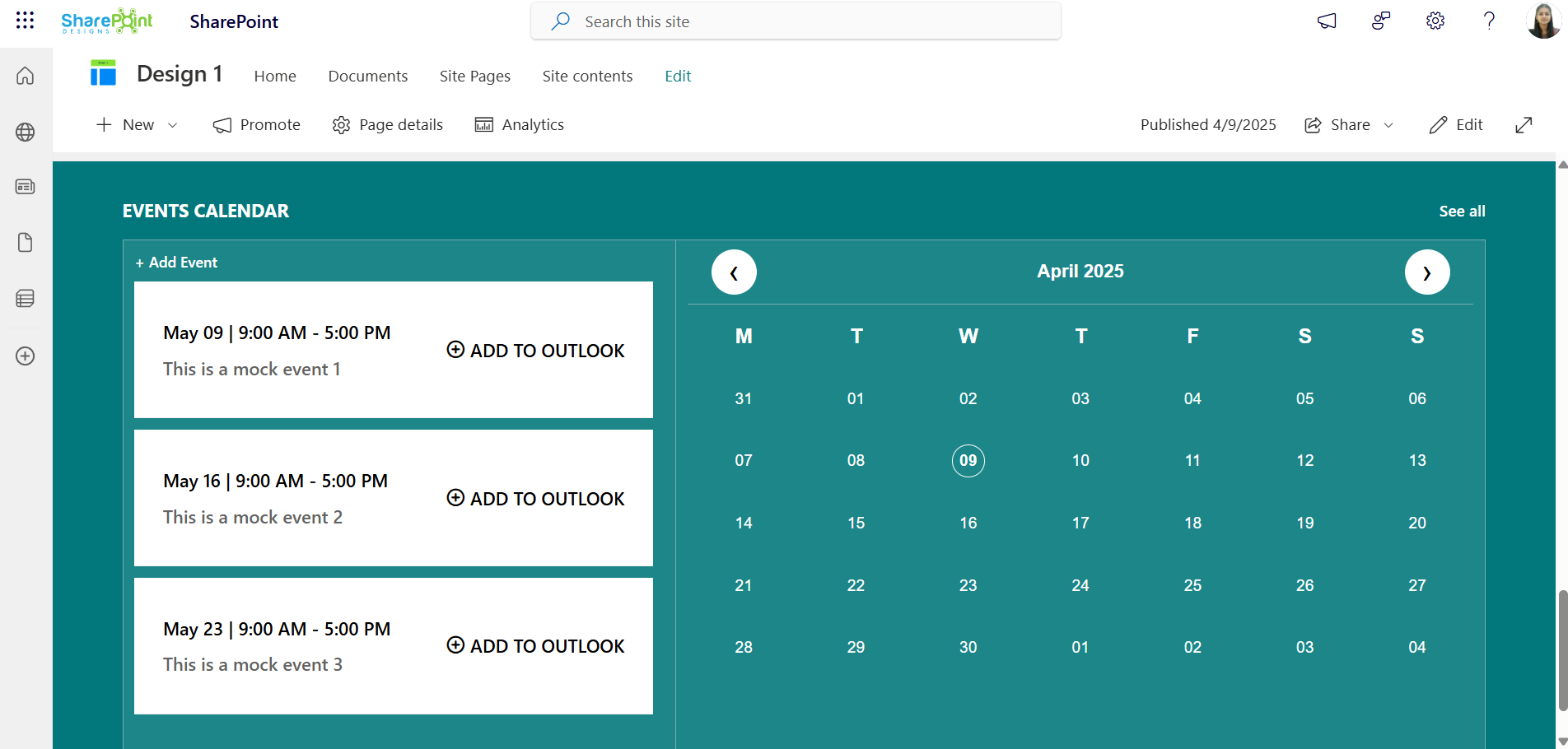
Keep everyone updated with key organizational dates and activities:
Event Calendar: Displays company meetings, events, holidays, and other important dates.
Detailed Info: Includes date, time, location, and other essential details for each event.
Upcoming Events
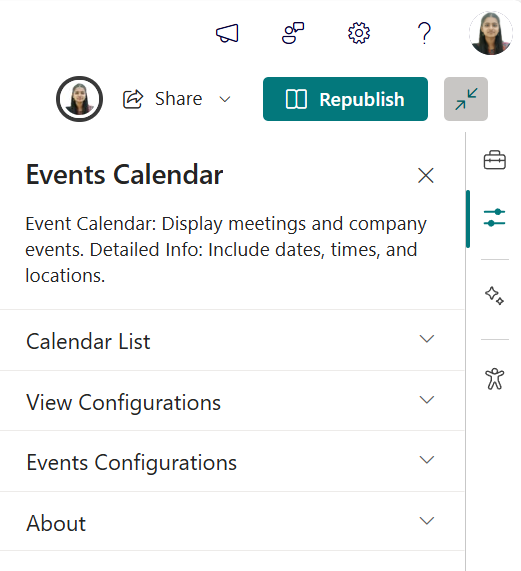
🏷️ Events Calendar Web Part – Property Pane Configuration
Events Calendar Property Pane
⚙️ Configuration Options
Calendar List
🏷️ Name
🎯 Purpose
💡 Notes
Calendar List
Quick access to the connected SharePointEvents list
View Configurations
🏷️ Name
🎯 Purpose
💡 Notes
Webpart Title
Customize the title appearing above the calendar
Text input
Select a List
Choose theevents list from the dropdown to display event data
Dropdown
Filter Events
Note: If the filter option is set to "Upcoming Events", both the calendar and the events section will display only upcoming events.If the filter option is set to "Previous 3 months + Upcoming Events", the calendar will show both past (from the last 3 months) and upcoming events, while the events section will continue to display only upcoming events.Dropdown to filter event types shown in the web part
Dropdown months filter options
Show Calendar
Toggle to show or hide the visual calendar interface
On / Off
View All URL
Link to full events listing page Default: {siteUrl}/_layouts/15/Events.aspx?ListGuid={listID}